
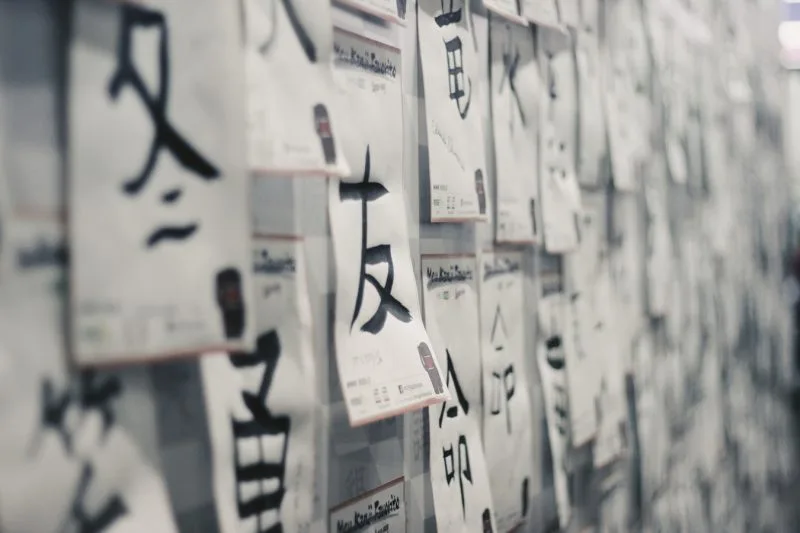
Have you ever picked up a book, a manga, or even a photo and come across a kanji you can't read, write, or type? You can't search for it until that character is something you can paste.
The same problem shows up on a street sign, in a YouTube frame, in a light novel, or on a manga page, often with no keyboard nearby. The first idea is usually Google Lens, or the camera in Google Translate.
Copy the characters with a camera
Point Lens at the print, select the Japanese it finds, and copy it. You can translate that selection in the same step. The reading is what you get after you paste those characters into a dictionary.
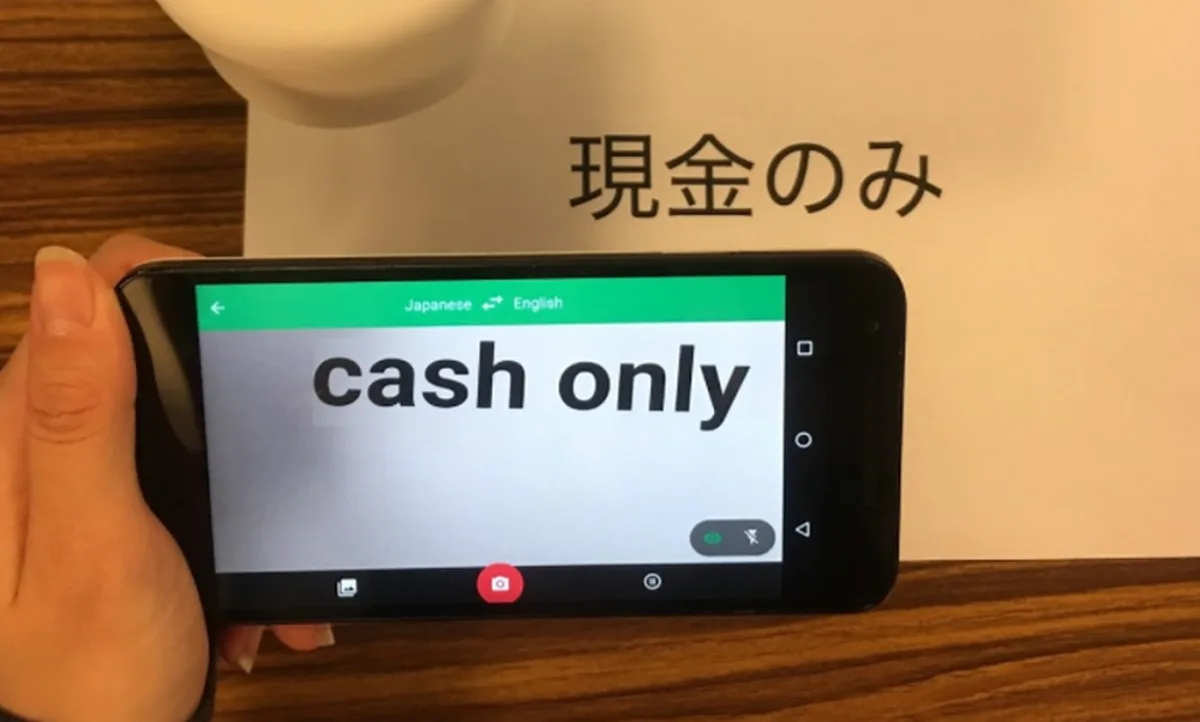
The photo here is the Translate camera, set from Japanese to English, held up to a paper sign. The sign reads 現金のみ, and the phone answers "cash only". For the reading, 現金 is げんきん, cash, and のみ means only.
If you use macOS or iOS, Live Text can copy the characters out of a photo or a manga page you already have on the screen. On iPhone and iPad, turn it on in Settings, then General, then Language and Region. Japanese is on Apple's current Live Text list. A decorative font or a rough hand often will not scan.
Draw the character or pick its parts
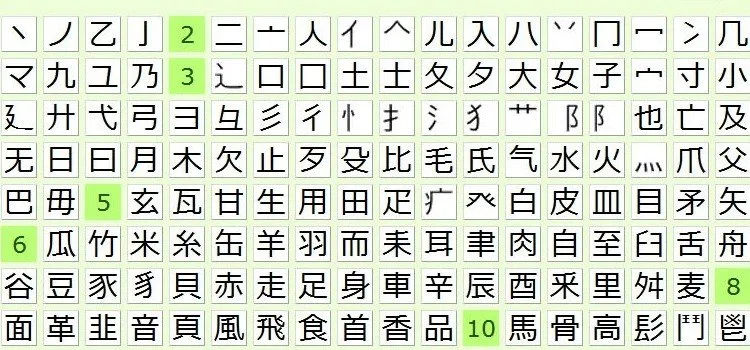
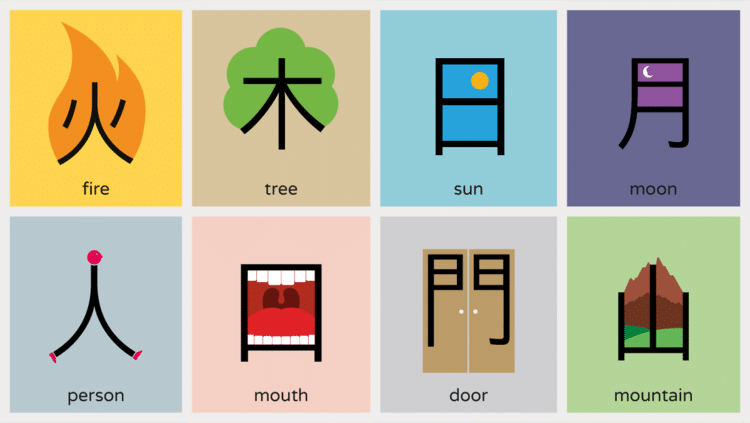
Some sites let you search by strokes you draw or by the pieces you recognize. Those pieces are the radicals that form a kanji, and you can use them when you still can't type the character.
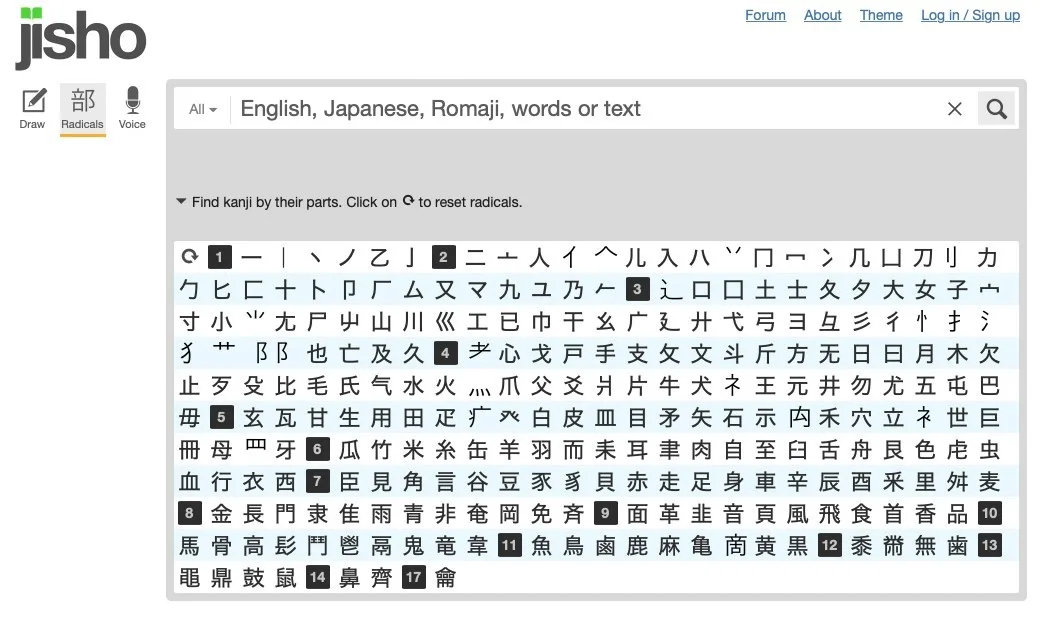
On Jisho, Draw and Radicals sit beside the search box. Open Draw when you can sketch the shape. You draw the character, and Jisho offers characters that resemble it. Open Radicals when you know a piece and would not trust the sketch. Select the parts you see until the character shows up among the suggestions. The grid groups those parts by stroke count.
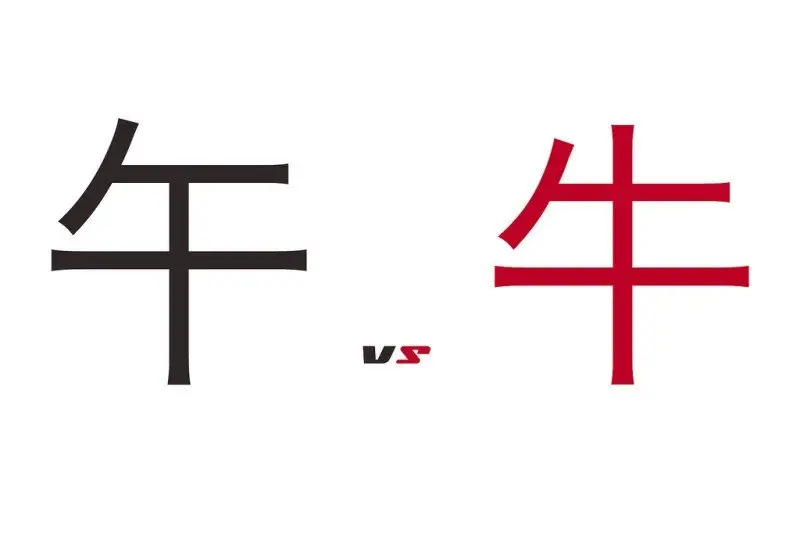
Be careful not to choose the wrong piece. An extra radical, or a lookalike with a different number of strokes, pushes the character you wanted off the list. If the suggestions stop looking like the shape in front of you, clear the last piece and try the part you are more sure of.
Many dictionary apps on a phone let you draw a character or tap its parts. Stay with the camera while the print is clear. Move to Draw, or to those parts, when the camera comes back empty.

Community
Comments
0 comments
There are no published comments in this language yet.
Send comment