
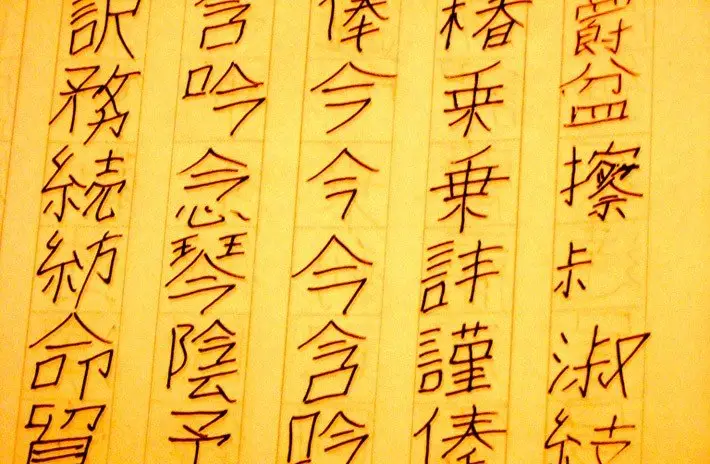
Are you trying to type Japanese, Chinese, or Korean characters, but only squares or question marks appear? That usually means the game or program does not recognize your current input setup. In this article, I will show you how to make these languages work properly in games and applications that do not accept them by default.
This is especially useful when a game or software only accepts certain language settings. With the right configuration, you can type special characters and other scripts much more easily.
Why would someone want to write Japanese, Chinese, or Korean in an MMO?
- to send a message in Japanese;
- to show that you know the language;
- to send secret messages to friends;
- to confess to someone;
- or just for fun.
Most games and computer programs still rely on a "non-Unicode" format, which can block characters that do not belong to the default language set. The fix is usually simple: change the default language for non-Unicode programs and make sure your input method is ready.
Before you begin, make sure the language or keyboard you want to use is already installed on your computer. If you are curious about how the Japanese keyboard itself looks, you can also check what the Japanese keyboard is like.
Contents 5
Tutorial for Windows
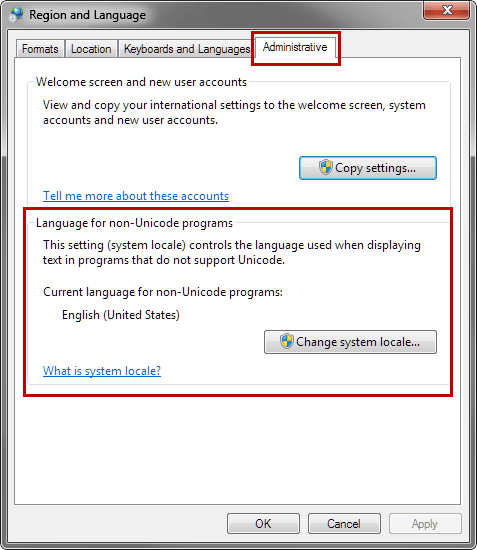
- Open the Start menu and search for “Region” or “Language and Region.” You can also go through Control Panel and then to “Clock, Language and Region.”
- When you open the “Region” or “Language and Region” window, click the “Administrative” tab.
- Under the non-Unicode programs section, click “Change system locale” and choose Japanese, or whichever language you want to type in without trouble.
- Restart your computer and test it in the game or program.
Do all games support Japanese?
Unfortunately, no. Some games do not include the language support you need, so the method may not work everywhere. But in many cases it does.
If a game that should work still does not accept the characters, one alternative is to install the Japanese version of the game or try a different input system.
Keep in mind that changing the language for non-Unicode programs can affect other software on your computer, so use this setting with care.
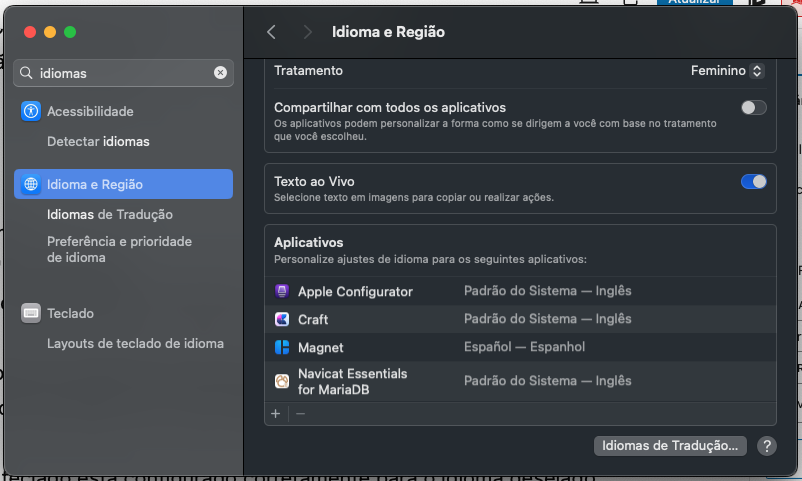
Tutorial for MacOS
- Language settings:
- Open System Settings.
- Look for “Language & Region” or “Keyboard.”
- Select the language you want, such as Japanese or Chinese.
- Advanced settings:
- Check for additional input or language options in the same area.
- Set up the keyboard or input method you need.
- Test it in the game:
- Open the game and see whether the keyboard is correctly configured.
- Try typing inside the game to check whether the input works as expected.
- If it still fails, look for language options inside the app itself.
Tutorial for Linux
- Language settings:
- Depending on your Linux distribution, language settings may be in a different place.
- Usually, you can find them in System Settings or in a distribution-specific control panel.
- Keyboard settings:
- Look for keyboard and text input options.
- Choose the right keyboard layout for the language you want to use.
- Test it in the game:
- Open the game and check whether the keyboard is configured correctly.
- Try typing to confirm that the input works.
Mobile devices (iOS and Android)
On mobile devices, language and text input settings are usually handled in the system settings. The general steps are:
- System settings:
- Open the device settings.
- Language and keyboard:
- Look for the language and keyboard section.
- Add languages and keyboards:
- Add Japanese, Chinese, or any other language you need.
- Use it in apps and games:
- The keyboard should switch according to the language selected in the system.
- Make sure you are using the right keyboard when typing.
These are the general steps for setting up Japanese or Chinese text input on different platforms. Exact menu names may vary depending on the operating system version.






Community
Comments
0 comments
There are no published comments in this language yet.
Send comment