
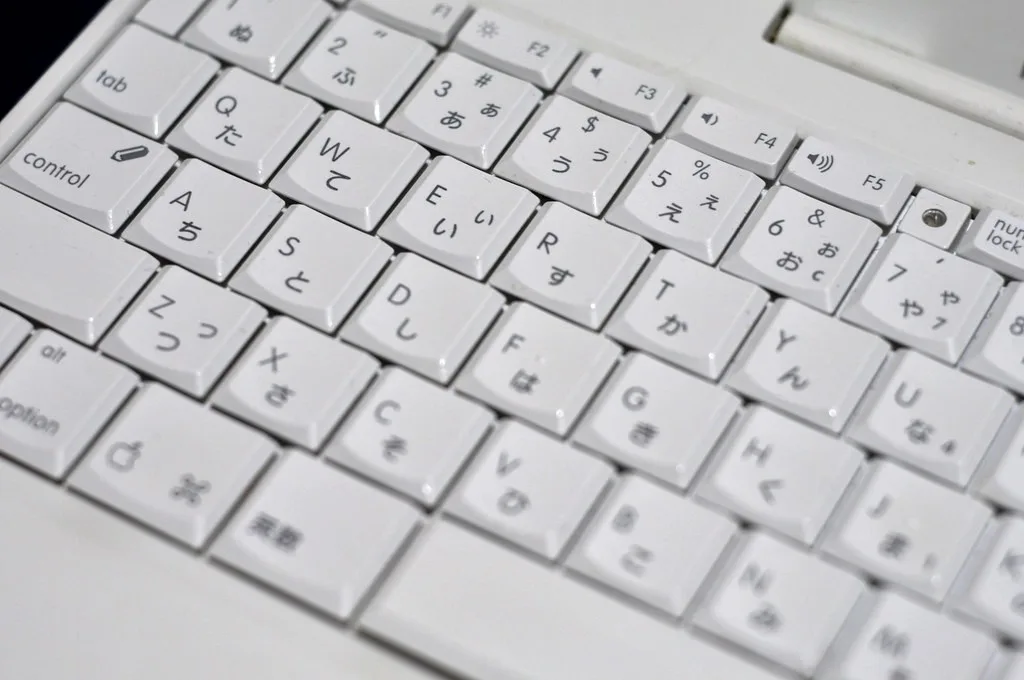
Many must have wondered what the computer keyboard used by the Japanese looks like. This is because in Japan, the writing does not have letters as we commonly know them. Before understanding the keyboard, it is important to know the writing they use, which is kanji logographic (symbols that represent whole words) and kana syllabic (a pair of syllabaries, hiragana).
There are at least 50,000 kanjis, most of which are obsolete. According to the Japanese government, elementary school students must have knowledge of at least 1,026 symbols, while high school students must reach the mark of 2,136.
So, if a keyboard were to use the kanji system, it would have to be considerably large to fit so many symbols! And these logograms are also not capable of giving any idea of how the words are pronounced.

Hiragana and Katakana are used with the syllabary function so that each symbol represents a letter for the facilitation of writing; each has 43 characters. This idea is the same used for Japanese keyboards.
With the shift, alt, and other auxiliary keys, it is possible to access rarer syllables. And as you write in hiragana, corresponding kanji options appear for use. There are specific keys for the language itself. For example, in Brazil, there is ” ç ” and in countries like Spain, there is ” ñ ”.
If you have difficulty or do not wish to install a Japanese keyboard, know that Japanese symbols can be copied and pasted.
We also recommend reading: KANA: Definitive Guide to Hiragana and Katakana – Japanese Alphabet
Table of Contents
Accentuation with Japanese Keyboard in 10 Steps
For those who use the Japanese keyboard, it can be difficult to place accents on words because the keyboard driver usually does not support dead keys to combine two keys to generate the accented character in Windows operating systems.
As a solution, you can install an additional accentuation driver to allow accenting Roman letters using a Japanese keyboard. This tip also works for other international keyboards that do not have accentuation in their language.
Step 1: Download the Driver
- Download the necessary accentuation driver and save the .zip file on your computer.
Step 2: Install the Driver
- Unzip the driver files.
- Run the “Setup” file to start the installation.
Step 3: Restart the System
- Restart your computer for the changes to take effect.
Step 4: Configure the Default Keyboard
- Press the Windows key + R.
- Type “osk” (without quotes) and press Enter.
- Open the Control Panel.
- Go to “Clock and Region” > “Language”.
- Click on “Options” next to “Portuguese (Brazil)”.
- In the “Text and Input Language Services” window, under “Default input language,” select “Portuguese (Brazil) – Japanese dead keys”.
- Remove any other keyboard listed under “Portuguese (Brazil)”.
Done! Now you can use your Japanese keyboard with correct accentuation in Windows.

Virtual Japanese Keyboard
For those who live outside Japan and are learning the language, it is essential to be as familiar as possible with the writing. One way to do this is to have a virtual keyboard for mobile or computer to write in hiragana and katakana format.
The keyboard is available on the Lexilogos website and allows writing in any language (even those that do not have letters) through the Windows keyboard itself and already has over 90 languages available.

But, to find the kanji, just type in the search on the site: ROMAJI and press ENTER. Then, several radicals will appear, and you just need to select the kanji you are looking for. However, you can simply configure your computer or mobile to write in Japanese.
For Android phones: Download the ‘Google Japanese Input’ app from the Play Store, and after installation, you must enable the keyboard in Settings -> Select input method -> Keyboard layout -> QWERTY.
In the case of iPhones and iPads: Go to Settings -> General -> Keyboards -> Add new keyboard -> Japanese – Romaji -> Done.
For Windows computers: Go to Settings -> Time and Language -> Region and Language -> Add a language -> 日本語 Japanese -> Next -> uncheck the option “Set as my Windows display language”, select Handwriting -> Install -> Click on the language icon -> Select Microsoft IME Japanese -> Click the letter “A” once, and it will change to あ.
For Mac computers: Go to System Preferences -> Keyboard -> Input Sources -> + select “Japanese” and “Add” -> Click the flag near the date and time at the top of the screen -> Select Hiragana.
Leave a Reply